
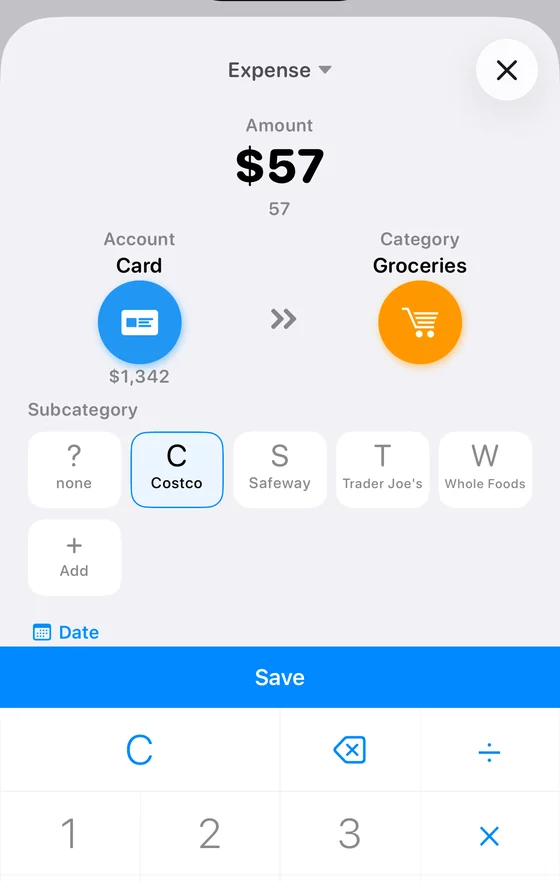
An expense is added with one gesture. Hold a wallet and drag it onto an expense category. The entry form opens with the wallet and the category already filled in, so only the amount is left to type.
Step by step
1. Press and hold a wallet. For example “Card” in the Accounts row. Keep your finger on it until it lifts.
2. Drag it onto an expense category. Pull the icon down and release it on the category you need, for example “Groceries”. The category highlights when the drop is registered.
3. Type the amount. The Expense form opens with the wallet and category already selected. Enter the amount on the calculator keypad, for example 57.
4. Pick a subcategory (optional). If the category holds different kinds of spending, say “Costco” and “Whole Foods”, choose one. If not, leave “none”.
5. Save. Press the blue Save button. The amount comes off the wallet and appears in the month straight away.
The same gesture works for income
Drag an income category, “Salary” for instance, onto a wallet and you record a payment in. More in the guide to adding income.
Budget and expense together
If the category has a limit set, the app shows how much of it is already spent and how much is left until the end of the month. More in the guide to setting a budget.